The ability for users to see captions in a video in YouTube can be accessed by either selecting the letter c or by clicking on the closed-captioning. While not all videos have closed-captioning available, many do.
You could also have those captions be translated for students or whomever you would like. To access the translation make sure to have the closed-captioning on and then the settings gear, choose CC subtitles, then auto-translate, and then choose the language you would like.
Embedded below is a 1 minute and 16 second YouTube tutorial.
In YouTube the ability to create and share Playlists with students and families allows for some great learning resources to made available to them.
One "issue" is when you are playing a video and that video is categorized as "Made for Kids" it does not allow you to add them directly to a playlist. A way to still add that video it to search for the title of the playlist in YouTube, but do not play it. Look for the thumbnail video and choose the three dots in the upper right. You can now save that video directly to a playlist of your choosing. (see image below)
Embedded below is a 2 minute and 9 second YouTube tutorial showing you how to create a playlist, how to delete a playlist, as well as how to share a playlist.
Khan Academy is an amazing free resource available for our students (and for us as well). While it can be overwhelming, a simple way to use it would be to send review questions to your students. What is great about it is that the students can take the assessment (usually between 4-7 questions), receive assistance if needed, and then see their score. What I especially like is the fact that they can click on the score and see their answers to the questions as well as retake the assessment and get a higher grade!
Embedded below is a 1 minute and 37 second YouTube tutorial showing you the necessary steps.
If you like to play Wordle - there is a great website called mywordle.me that allows you to easily create your own Wordles to share with others. I created a blog post as well - How to create your own custom Wordle.
Flippity.net has included the game called Word Master. ** Make sure to check out all of Flippity's other options as well - it is an outstanding site.**
Word Master is very similar to Wordle with a few minor tweaks. You can see the differences below:
Important differences from Wordle:
There is no dictionary. Players may type whatever the wish, including gibberish.
There is no standard character set. You may use numbers, symbols, and non-English characters in your puzzles (but players will need to be able to type those characters.)
You may use words of any length up to 10 characters. 5 character words are recommended.
Embedded below is a 1 minute and 59 second YouTube tutorial.
If you have ever had a website not load properly there is a shortcut that allows you to reload the webpage without using cached content - try Shift+Ctrl+r.
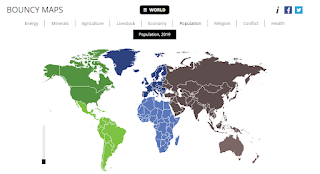
Bouncymaps provides users with a look at data on a map in a whole new way. The site shows the "regular" world map with the ability to hover over each county and show data revolving around the criteria (example - United States has 329.1 million people which is 4.3% of the World's population). However, where it gets super "cool" is when you look at the bottom of the map and choose Bouncy Map instead of World Map. The map "changes" to reflect the criteria, not the land size of the country.
There are a number of criteria that includes sub categories as well.
Embedded below is a 1 minute and 31 second YouTube tutorial.
If you are in need of converting a media file into another file, give online-convert.com a try. The site is very easy to use and can convert the files you see below.
Embedded below is a 1 minute and 48 second YouTube tutorial showing the steps involved.
Google Photos has a ton of amazing feature; however the one that can save you a ton of time is the search option. You can search by face (include a name for even easier searching), favorites, holidays, concerts, sports, and my favorite one for specific search is by date. Just type in a date and Google will take you right there. Nice to have that ability.
If you have ever copied an item on your Windows-based device and then by mistake copied another one prior to pasting the original one, you know it can be a big frustration. Well, there is a simple solution:
hold down the Windows Key and the letter V
You will then see the previously copied items on your clipboard.
Embedded below is a 1 minute and 14 second YouTube tutorial.
On a Chromebook if you have copied a website link or an image and then went ahead an copied another link or image before pasting the last one it can be frustrating. Thankfully all you need to do to find that last copied link or image is to
select the "search" button (look like a magnifying glass above Shift) and the letter V
You will then see the last 5 items you copied.
Embedded below is a 1 minute and 14 second YouTube video.
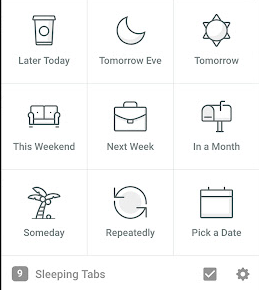
If you have a website that you have found but would like to save it for later, try adding the extension Tab Snooze.
Once you click on the extension you can snooze the tab to come back to at a later date and time. Now, I have reached out to the developer to see why the at the date of this post some of the options are not showing as you see below.
Embedded below is a 1 minute and 54 second YouTube tutorial.
Today is my birthday and a friend of mine sent me the website https://you.regettingold.com/ . In the site you simply enter in the date in question and you are presented with lots of interesting (and some odd) facts since the day you were born.
Embedded below is a 1 minute and 14 second YouTube tutorial.
If you use Screencastify for recording instructional videos you know how valuable of a tool it is. A nice feature that is relatively new is the ability to add Interactive Questions into your video.
To add the questions you will simply need to access your previously created video and go into your recordings. Make sure to select he interactive questions icon on the right and then you can then start watching your video. When you are ready to ask a multiple choice question make sure to click on the blue "Add Question" icon at the bottom of the page (has a time stamp). Make sure to add at least two possible answers and choose the correct answer. Continue on with as many questions as needed and then share your video with others (top of screen). You can share directly to Google Classroom or as a link.
Once the quiz has been completed you will see responses at the top of the screen as well with the quiz already graded.
If for some reason you need to adjust your questions, make sure you click on list view on the right side of the screen.
Embedded below is a 2 minute and 57 second YouTube tutorial.
If you (or a student) are typing on a Chromebook and the letters you are typing do not come up as they should, take a quick look down to the bottom right of the screen where the clock is. In the United States what you should see is something that looks like what you see below (notice the US).
However, you may see something that looks like this (notice the DV).
The quickest way to "solve" this is to select Ctrl + Spacebar. This should then adjust back to the US keyboard.
If you would like to see more information regarding the keyboard, simply go into the settings, and adjust the different input methods.
In the 1 minute and 3 second video embedded below you will see how to adjust the keyboards.
If you are looking for an easy to use audio editor (and free up to 5 minutes) - check out TwistedWave.
You can upload files as well as create a recording directly within the site. The controls are easy to use and have a few nice features, such as the ability to add an remove markers, change the pitch/speed, fade in/out, etc.
Embedded below is a 2 minute and 6 second YouTube tutorial.
If you would like to have a template set up for your students that includes slides with image placeholders, or you would like to have a Slide with image placeholders, try the following.
Choose how large you would like the placeholder to be
If you would like to copy, make sure to use Ctrl D to make an exact copy
If you would like to add another slide with an image placeholder, go to another Slide and create as you would like.
Rename the edited Slide deck (if you want) and close out of the editing by clicking on the x in the upper right to close the editing feature.
To access your newly created Slides with image placeholder make sure to go above the slide (on the left side) and choose the carrot next to the + (see image below)
Choose the Slides you would like to include (with the placeholders)
If you now want to share the template with your students make sure to name your presentation and then share with your class in Classroom (remember to force a copy).
Embedded below is a 2 minute and 14 second YouTube tutorial.
A great feature in Google Slides is the ability to include all types of content (including video and audio) to go along with text.
A few quick reminders when importing background audio.
If you are using a video as well (you can use the audio as background music) make sure to add the video first, look to the right for options to play on click, play automatically, or play manual.
It is up to you - but if you are using background music I would say to play automatically.
With the audio, there are a number of sites that have royalty free music.
Another one to use is YouTube's - located in your YouTube Creator Studio - Audio Library - make sure to scroll. It is located on the bottom of Dashboard, Content, Playlists, etc.
Once you download your audio, make sure to upload it into Google Drive go back to your Slide and choose to insert audio.
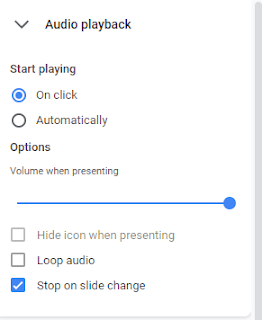
Once you insert your audio you will have a bunch of options that you see below. Again, if your video is automatically playing, I would recommend choosing to start playing automatically.
I would also recommend moving the volume down a bit so it does not overwhelm your audience with too much audio.
You can also Hide the audio icon when presenting, loop the audio, as well as the ability to stop the audio on slide change.
Embedded below is a 1 minute and 53 second YouTube tutorial.