Friday, June 17, 2016

Love green grass? Try the "Mylawn" app by Scotts

Every once in awhile I will post something out there that is "tech" that does not necessarily have to do with education. In this case it is the Mylawn app by Scotts. I am a huge fan of this app!!

I find this app to be very user friendly as gives you a detailed plan for your lawn. It will suggest what and when to apply the product, the benefits to the product, how much rain is in the forecast, as well as keeps track of what and when you applied the product(s).

This is the first year I have followed through with all of their recommendations and so far - so good!

Image Source


Brad

Thursday, June 16, 2016

Typingclub.com - great site for practicing typing skills.

If you would like your child or students to improve upon their typing (gotta love the hunt and peck method) - try https://www.typingclub.com
Image Source


The site has 100 levels for the students to master. No sign-in required. However, if you want to save your progress a username and password is needed. Click here for their Privacy Policy.

Users can jump ahead to any lesson they wish. A nice feature of the site is that it does keep stats to let you know how you are doing.

Image Source


Wednesday, June 15, 2016

Ok - best shortcut for a Chromebook. The granddaddy of them all....

CTRL - ALT ? - this shows you a keyboard and then all the shortcuts that are available on a Chromebook.

If you look below this is what a screen will look like with a number of shortcuts. The example below just shows if you hit ctrl. Try selecting CTRL and Shift to see even more!

Image Source

Monday, June 13, 2016

Safe site for kids to use to research a topic - try Kiddle.co

While there are quite a few safe-search sites out there, Kiddle.co has been very effective this year at the elementary schools where I work.

For more information - click here

Sunday, June 12, 2016

Have a favorite author and want to find an author that is similar? Try literature-map.com

Many times we find an author we, or students really like, and want to find an author who is similar. Well, with literature-map you can!

Simply log on and type in the author - it will create a cloud type look, with the author you chose in the middle and the most similar in nature to your author will be the closest.

Click here for a 40 second tutorial I created.

In the example below I chose Jerry Spinelli as the author.


Saturday, June 11, 2016

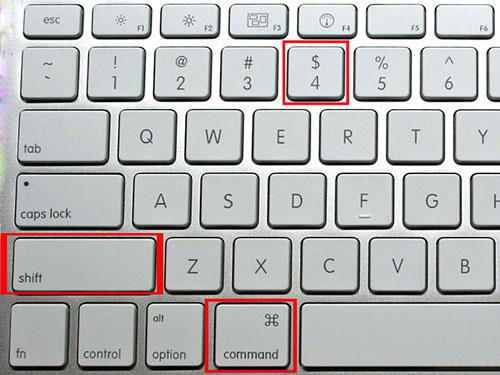
Have a Mac and want to "snip" a picture? Try Command, Shift, 4

Maybe this is more for me. I keep forgetting if it is Cmd Shift 3, 4, 5, or 6! 

Anyway, using Cmd Shift 4 will allow you to "snip" a picture and will store it on your desktop.

Image Source

Friday, June 10, 2016

Use the Chrome App Launcher - or the Chrome Omnibox (address bar) as a calculator

Working on something and can't find a calculator or a phone? Try either using the Chrome App Launcher - or use the Chrome Omnibox (address bar) as a calculator.

Using App Launcher as a calculator

Using the Omnibox (address bar) as a calculator.


Thursday, June 9, 2016

Random Name Generator - Flippity.net

Here is a fun way to create a random name generator - use Flippity.net


Click here for a 1 minute tutorial video that I created.

Click here​ for directions from the site.

Any questions - let me know!
Brad

Wednesday, June 8, 2016

Want to remove ads, navigation, and junk before you print? Try this Chrome Extension

If you find a website that you like and you want to print it out, but you don't want to print out lots of pages, or spend time cutting and pasting - try the Chrome Extension - Print Friendly & PDF.

For example - here is a the first page on History.com's website about the American Revolution.


And here is what happens when you use the extension. 


Tuesday, June 7, 2016

Wordcloud - turn a document into an image - possible Father's Day idea

Want to turn a document into an image - try Wordclouds.com.

Free online Wordcloud generator
"Wordclouds.com is a free online word cloud generator and tag cloud creator. Wordclouds.com works on your PC, Tablet or smartphone. Paste text, upload a document or open an URL to automatically generate a word- or tag cloud. Customize your cloud with shapes, themes, colors and fonts. You can also edit the word list, cloud size and gap size. Wordclouds.com can also generate clickable word clouds with links (image map). When you are satisfied with the result, save the image and share it online."


Below you will see a wordcloud image created using Clement Clark Moore's "A Visit from St. Nicholas"
A Visit from St. Nicholas - Twas the Night before Christmas


 Below you will also see images that are available on the site as well as an example.


Monday, June 6, 2016

Google Voice Typing

Hello everyone,

If you, or someone you know hasn't tried out Google Voice Typing on Google Docs - try it out.

"It's typing what I am saying!" "This is awesome!" I have seen first hand how voice typing made a child actually cry with relief, excitement, and just sheer joy because it made her "feel like an author".

To give it a try, simply follow these steps. 
** ctrl shift s will also start voice typing up quickly on docs**

1. Log onto Google Docs
2. Select tools
3. Select voice typing
4. Select click to speak.
5. Remember to speak slowly and distinctly (remembering to say the end punctuation.

Click here for Google's Voice Typing "help"

Click here for a quick video I created on how to use Google Voice typing.

Take care,
Brad 


Sunday, June 5, 2016

Want to right-click on a Chromebook?

Press the touchpad two times, or press ALT and the touchpad at the same time.

Image Source

OSMO - focus on coding

So this morning my son and daughter (4 &7) have been "playing with" OSMO Coding. It has been a fun experience for all involved as they are not only working together to solve problems, but are having a great time.


If you are unfamiliar with OSMO - OSMO is a game system for the iPad that opens the iPad up to hands-on play. "Osmo fosters learning in key areas such as: social-emotional skills, creative thinking, art, STEM (science, technology, engineering and mathematics) and common core."

Click here for the link to the site.

How much does it cost?
In the United States the Starter Kit is $79, the Genius Kit is $99 and the Wonder Kit is $145. The Numbers Set* is $29 and the Coding Set* is $49 (* = requires the Osmo base and reflector).


As always, any questions please let me know!
Brad

Saturday, June 4, 2016

Take a screenshot of just part of a page with a Chromebook

To take a screenshot of just part of a page on a Chromebook - kind of like the snipping tool on a Windows machine, try using the ctrl, shift, and windows switcher.

Image Source

Chromebook - Take a screenshot

If you want to take a screenshot with a Chromebook simply hit the ctrl and the "window switcher" key.

Quickly sign-out of Chrome on a Chromebook - Ctrl Shift Q (2 times)

Best short-cut for Chromebooks. When you need to sign-out of Chromebooks completely, simply select Ctrl Shift and Q 2 times. This will completely log the user out of Google. Then, you can shut down the device or pass on to another user.

Wednesday, June 1, 2016

What are extensions on Google Chrome and can I have a list of some popular ones?

Hello everyone,

The use a lot of figurative language has helped a lot when trying to help others get a deeper understanding of a topic. 

So, when trying to help others understand what an extension is, I like to think of an extension ladder. While a regular old ladder is good for most tasks, every once in awhile, a good ole' extension ladder helps me get the whole job done. It allows me to reach places I just couldn't with that 6' ladder. The same thing can be said about extensions on Google Chrome, they help to add more features and functionality to get the job done right. 

While there are thousands of extensions, here are just a few that I have written down.

Here is a link to 100+ apps and extensions by Kasey Bell. She has a lot of great ideas.

Readability 841,334 users  - Turns any web page into a clean view for reading now or later on your computer, smartphone, or tablet
Awesome Screenshot1,011,704 users -  Screen captures any part of a web page, can blur sensitive information, and can download image to Google Drive.

Screencastify - 1,604,465 users -Probably my favorite extension. Very simple to use - just press record
 and it will start taping your screen. Will store videos on Drive - or directly to YouTube.

Goo.gl796,289 users Ever have a website that is just entirely too long to either share in an e-mail or with your 
students? Simply use this extension to shorten that URL.

Text Mode44,572 users This extension will allow you to take out all video and 99% of adds on webpages 
and just focus in on the text on the screen.

Tab Resize274,099 users Allows users to split the screen layout to display multiple tabs in one tiled view.

Save as PDF281,359 users Allows users to download web pages to PDF form with just one click.

Turn off the Lights - 1,419,034 users - The webpage will literally fade to dark and you can watch the video as if you were at the movies.

Save to Drive  - 2,181,301 users Helps you save web content or screenshots to your Google Drive.


Google Translate - 6,118,447 users - Translates either a full web page or just a certain section that you would like translated into another language.

Sticky Notes - 369,829 users will leave sticky notes "post-its" on your desktop. 
More extensions will be added along the way!

Print Friendly & PDF - 1,040 users - Removes ads, navigation, and "junk" before you print from a website.

Thanks for reading!
Brad


Tuesday, May 31, 2016

Create a voice recording and store it in a QR code using Vocaroo, create a QR code using Google Drive, and ways to use QR codes in school

QR Code


Ways to use QR codes in school - click here


__________________________________________________________________________


Vocaroo


The site allows you to record your voice and leave an audio recording of any length. One of my favorite features is the ability to create a QR code for the students to use. The only drawback is that with the QR code you would need a device and a QR code reader  to read it.
The steps are:
1.       Go to www.vocaroo.com
2.       Click to record
3.       Allow the site to have camera and microphone access
4.       Click that you are happy with the recording – and click to save.
5.       Choose how you want to save it – Facebook, Pinterest, Gmail, QR code, etc.


Quick video tutorial - https://youtu.be/CFQuZpG-S-Q
__________________________________________________________________________


Want to create a QR code using Google Drive?  Try this template.


Quick video tutorial - https://youtu.be/6P7dZ-WrBto


__________________________________________________________________________


QR Code Generator


Turn any website into a QR code by clicking http://www.qr-code-generator.com/

Quick video tutorial - https://youtu.be/EpSCF-alesk

Google Photos - 200 million users, over 24 Billion (with a B) selfies, and FREE!!

Hello everyone,
 
Ever wanted to store all of your photos and videos that you have on all of your computers? Ever wanted to make sure all the pictures and videos on your phone don’t take up all the space on your phone? Well – Google Photos can help you with your wishes – and for free.
 
Google Photos has been around just over one year – and here are some interesting facts (taken from Google Blog – click here for the link – actually a good read).
 
“Now 200 million of you are using Google Photos each month. We’ve delivered more than 1.6 billion animations, collages and movies, among other things. You’ve collectively freed up 13.7 petabytes of storage on your devices—it would take 424 years to swipe through that many photos! We’ve also applied 2 trillion labels, and 24 billion of those have been for ... selfies.”
 
I created a short video showing how to use Google Photos – click here.
 
Click here for the website which will also have a link to the Google Play Store as well as the App Store.
 
Should you have any questions, please let me know.
 
Thanks!
Brad