Monday, December 19, 2016

Multiplication Jenga

All you need is a Jenga board and a permanent marker.

Here are the rules of the game from Multiplication.com's blog.

It is played just like Jenga; however, a multiplication fact is placed on a side of a game piece.

When setting up the tower, make sure to place the multiplication fact face down so no player can see the probem.

When a piece is chosen the player must answer the question correctly to keep the tile. If answer incorrectly, the question is asked to the other player and if answered correctly - they get to keep the tile.

The game ends when the tower falls and whoever has the most tile pieces is the winner.

See the embedded 1 minute and 20 second YouTube video below.


Of course this could be altered to fit whatever facts you are currently working on. There are so many possibilities with this. 

Enjoy!
Brad


Sunday, December 18, 2016

25 days of the Polar Express - Polar Express games and activities

Chris Van Allsburg's The Polar Express has a website dedicated to providing you with 25 straight days of Polar Express themed games and activities!

I want to thank Dawn Montare for sharing this site. Thank you Dawn - I owe you some chocolate!

Below you will see  a 39 second embedded YouTube video showing what the site looks like.


Enjoy the activities!
Brad

Saturday, December 17, 2016

Throwing a party? Setting up a parent-teacher conference? Want the food choices or the times eliminated once chosen?

Throwing a party and asking for people to bring something to it?
Have parent-teacher meeting and parents need to sign-up for a specific date?

If this sounds like something you do but would like once a food-item or specific time is eliminated as soon as it is chose - try using Choice Eliminator 2.

Below you will see a 2 minute and 30 second embedded YouTube video explaining how to use the add-on and what it looks like.


Any questions, please let me know!
Brad

Friday, December 16, 2016

Many times overlooked or forgotten Siri application - set a reminder

A great feature on iOS devices is the use of Siri to remind you of anything from important meetings to buying milk at the store.

Below you will see two very short embedded YouTube videos.

The first embedded video (36 seconds) shows how to create a reminder.


The second embedded video (34 seconds) shows you how the reminder looks on your phone.


Any questions - please let me know!
Brad

Thursday, December 15, 2016

Want to create a shortcut to a website on an iPad or iPhone?

If you would like to take a website and place a direct shortcut to it on your device (iPad/iPhone) take a look at this embedded 1 minute and 13 second video below.


Any questions, please let me know!
Brad

Wednesday, December 14, 2016

Mathplayground.com - math games, videos, word problems, worksheets, and puzzles for K-6

If you are looking for a site to assist you in your class or with your child(ren) at home - Mathplayground is a site worth checking out.

Below I have embedded a 1 minute and 55 second brief introduction to the site as well as a look at one game (Alien Addition).


If you have any questions, please let me know!
Brad

Tuesday, December 13, 2016

Kidsites.com - provides great reviewed links for students

If you are looking for a reviewed website with numerous categories to enrich your child or students - try Kidsites.com.

Kidsites has been around since 1997 and their mission is, "to find and provide reviews for the best sites for kids on the Internet, and bring them together in one convenient location for our visitors."

Embedded below is a quick shot at what the site offers as well as a 48 second video of what the site looks like.


Image Source

Any questions, please let me know!
Brad

Monday, December 12, 2016

How to make a Playlist in YouTube

If you have a bunch of videos that you watch through YouTube and would like to keep them organized - try making a playlist.

This is a nice way to send videos on to others or to keep your videos that you show or watch nice and organized.

Below you will see a 1 minute and 17 second embedded YouTube video.


Any questions please let me know!
Brad

Sunday, December 11, 2016

Daily Five and Guided Reading 'Tech Makeover" website

Last year at a conference in Hershey Pennsylvania and went to a session dealing with The Daily Five and Guided Reading  by Ross Cooper and Erin Murphy (great Twitter follows). They have done an excellent job of providing you with plenty of resources to infuse technology in to your Guided Reading. For access to the site click here

Image Source
Take care,
Brad

Saturday, December 10, 2016

Browsing the web and need an instant definition of a word - or its' pronunciation?

If you have ever read an article online and instantly wanted to know the definition (or how to pronounce the word) - there is a great Chrome Extension to use.

It is called Googwordguide.com and is available in Chrome by clicking here.

What I really like about it is all you have to do is double click on a word and the definition comes up instantly with the ability to hear how it is pronounced.

Take a look at the 22 second YouTube video embedded below.


Any questions, please let me know!
Brad

Friday, December 9, 2016

Want Google Forms to grade your quiz instantly?

If in the past you have created a form for a quiz in your classroom but found the extra step of using Flubaroo a bit too much - Google can grade it for you.

If you select the settings gear in the upper part of your form and then select quizzes - you can have the quiz be automatically graded.

The quiz does have to be either multiple choice or True/False at the present time.

For a 1 minute and 5 second tutorial - please click on the embedded YouTube video below.


Any questions, please let me know!
Brad

Thursday, December 8, 2016

Want to see your Bookmarks Bar in Google Chrome?

If you want to see your Bookmarks Bar in Google Chrome simply
1. select the 3 dots in the upper right hand corner (kind of like a menu)
2. Select Bookmarks and show Bookmarks

For a 22 second tutorial, please click on the embedded YouTube video below.


Any questions, please let me know!
Brad

Wednesday, December 7, 2016

Need to quickly know when a plane's arrival is?

If you are picking someone up at the airport and need to know when the plane will be arriving - Google has made it easy for you.

Simply type the flight number in the omnibox and you will see all the information you need.


Have a nice day!
Brad

Tuesday, December 6, 2016

The new Shutterfly Website - upload directly from Google Photos (and Flickr, Facebook, SmugMug, and Instagram)

If you use Google Photos to store your photos and Shuttefly to make calendars, mugs, cards, etc - you  know how time consuming the whole process can be. Well, you can now breathe a sigh of relief. If you click here it will take you to a description of Shutterfly's new site as well as a way to sign-up for the new site. It states that it could take 2-3 weeks at which time you will receive an e-mail from them.  I found (as well as a number of friends of mine) that it took about 45 minutes. I hope it is the same for you if you try this.

The whole process for uploading directly from Google Photos was very simple and I explain it in my 1 minute and 55 second embedded YouTube video below.


If you have any questions - please let me know!
Brad

Monday, December 5, 2016

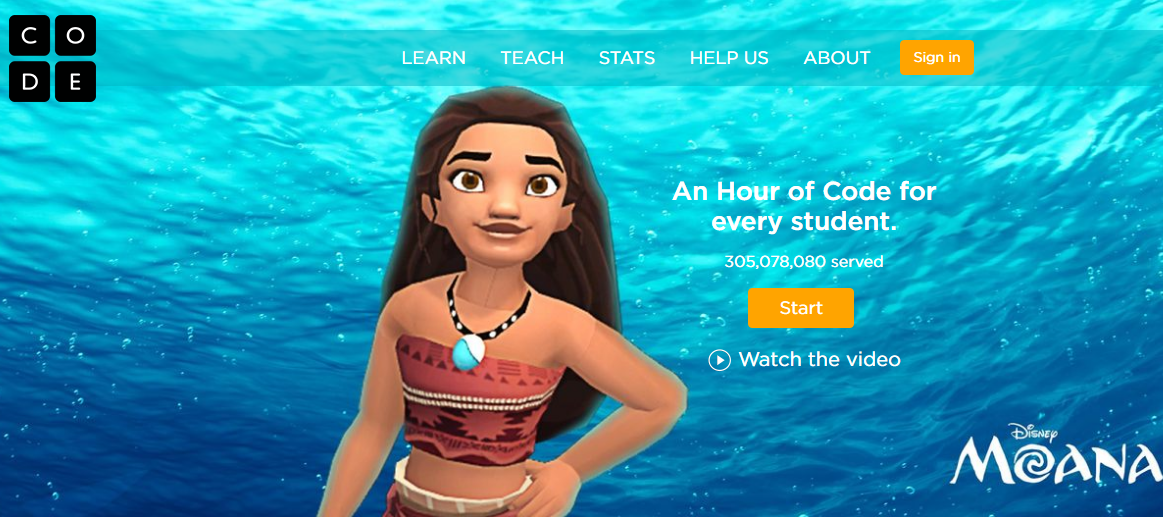
Hour of CODE is here! Brief intro to the site plus a few helpful links.

Capture3.PNG
Hello everyone,
It is that awesome time of year again – Hour of Code. https://code.org/. December 5th  – 9th.

If you are interested in trying this with your class - I have created a guide that I hope will be helpful.
Prior to having the students logging on for Hour of Code – a great resource to use is a Slide that was created to kind of teach students what code really is. The Slide and attached worksheets are available by clicking here. The sheets describe what an algorithm is as well as what programming really is.

I recommend logging on to the site and familiarize yourself with it. Take a look especially at the STATS page – the fact that there are currently 517,393 open computing jobs nationwide and last year, only 42,969 computer science students graduated into the workforce is eye-opening.
While you do not have to Sign-in – I strongly recommend it as you will be able to see students statistics as well as have access to many lesson plans and additional resources.

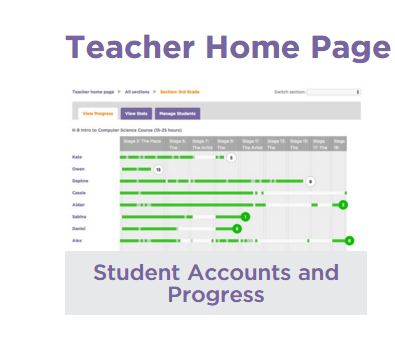
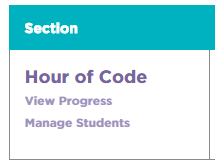
When you sign-in, scroll down to Teacher Home Page and click on it, select Manage Students, select Add Multiple Students.
** If you used CODE last year you may need to update your list of students.

code 4.PNGcode 2.PNGcode 3.PNG

When you add your students you will then be taken to a page with all of their passwords (you must select Show Secret – to see the password).

At the bottom of the page you will see a link for your class’s CODE page. All the students will need to do is click on their name and type in their password. This simplifies things a lot. Great to put on Google Classroom.
You will also see a link to print out all usernames and passwords.
The site is very similar to last year with characters from Star Wars, Minecraft, Disney Infinity Characters, as well as the ability to code with Anna and Elsa (Frozen), Flappy, as well as with wayfinding with Moana.

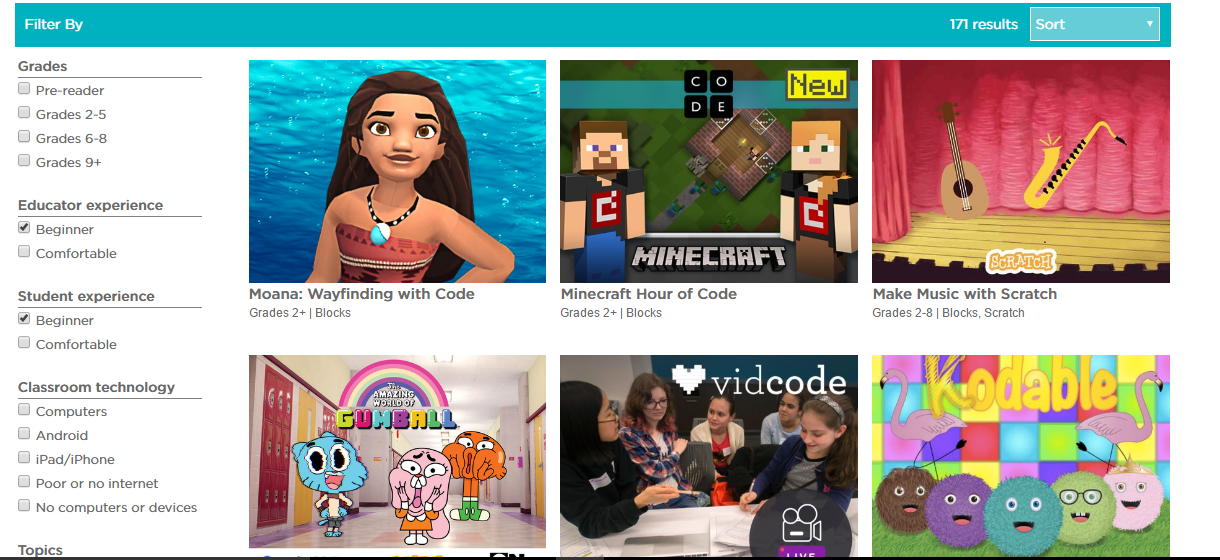
Click here to be taken to the site users will be interested in the most (see inserted picture below). Here users can select their interests, filter searches by grade level, educator experience, student experience, as well as what type of classroom technology is available. There is a very nice video tutorial for users to watch (typically around 2 minutes) prior to the start of coding.

Capture2.PNG
Here are two great videos  to introduce or re-introduce your students to CODE:
Video #1 – a little under a 6 minute video – inspiring and informative
Video #2 – about a 2 minute video – with a little introduction and then a quick bit about basic concepts of programming

I hope you and your students enjoy this site. Remember, this site can be used throughout the year – does not just have to be December 5th-9th.
If you have any questions, please let me know. This sheet is available by clicking here.
Thanks so much!
Brad

Sunday, December 4, 2016

Search in Google's Omnibox + Sunrise & Sunset times

If you are using Google's Chrome browser and are on any website and want to "Google" something - simply click in the omnibox (where www is located) and do your search there.

Plus - if you are ever in need of a sunrise or sunset time - simply search for the city and then sunrise / sunset.

Below is a 20 second YouTube video I created showing how to do this.

Enjoy those sunrises!
Brad

Saturday, December 3, 2016

Google's Santa Tracker - traditions, games, coding, etc.

Google released on the 1st of December Google Santa Tracker where students can "explore, play, and learn with Santa's elves all December long".

The site has a section for educators "learning with Santa Tracker" in which they have warm ups, extension activities, and writing prompts for you. The lesson plans are towards the bottom of the screen and include PDFs dealing with coding as well as Coding.


Any questions, please let me know!
Brad

Friday, December 2, 2016

Insert a live link in Outlook

If you would like to insert a link in your Outlook e-mail that says something like "click here" - watch the embedded 46 second YouTube video below.


Any questions please let me know!
Brad


Thursday, December 1, 2016

Insert an image in Google Slides as a shape

If you (or your students) would like to add an image in Google Slides as a shape, follow these steps:

1. insert the image
2. select the image in Slides
3. go the the crop icon and select the mask image to the right of it (look like a tiny triangle)
4. then select your shape

Embedded below you will see a 52 second YouTube video I created as well.

Big thanks to Layla Lyons for showing me this cool feature last week. 


Thanks to Layla Lyons for showing this to me the other week!

Take care!
Brad

Wednesday, November 30, 2016

Want to have a live poll in your Google Slide presentation? Try Poll Everywhere

Poll Everywhere is a great site to use to have your presentation be interactive all while you are gaining some data.

If you click here  you will be taken to the extension which will allow you to access the site quickly.

In the 3 minute and 58 second (4 minute) video embedded below you will see another extension Tab Resize which allows you to have multiple screens running at one time.

Underneath of that is a short 1 minute and 4 second video showing how the extension is built into Slides so you can add your poll with one click.


Any questions, please let me know.
Brad